• Microsoft Exchange Server 2010 Administration Instant Reference
    Microsoft Exchange Server 2010 Administration Instant Reference
    by Ken St. Cyr
  • Mastering Microsoft Exchange Server 2010
    Mastering Microsoft Exchange Server 2010
    by Jim McBee, David Elfassy
Thursday
Mar012012

SSO with SharePoint & Office Integration

Now,  I'm not a SharePoint person, but as an identity guy I've been forced to learn as much as SharePoint authentication as possible over the past several months.  I've been having one discussion in particular a LOT. This discussion revolves around why Single Sign On doesn't work well between SharePoint and Office integration. So I'm going to take some time, here, and explain what's happening.

The issue revolves around the Office client using a different cookie store than 3rd party web browsers use.  There are two ways to achieve SSO between SharePoint and Office – using either cookies or automated 401 response (integrated authentication)

Cookies for Authentication

The issue with the cookie-based approach really has more to do with Office than anything else. Office on Windows uses the wininet cookie jar. So when Office contacts a SharePoint site to open a document, it looks in wininet to find the cookie to use for SSO.  Internet Explorer also uses wininet. So if the user logs into the SharePoint site with IE, IE will put the SSO cookie into wininet. Then, when the user opens Office, Office uses that cookie that IE already put there.

Other web browser, however, use their own cookie jars. So if a user browses to SharePoint with, say Firefox, then Firefox will not put a cookie in the wininet cookie jar. When that same user opens Office, Office will see that there is no cookie for that SharePoint site there, and will undergo the typical authentication sequence in SharePoint (described in the next paragraph).  This is a similar experience for people who use Mac. Office on Mac doesn’t see the SSO cookie and undergoes the typical SharePoint authentication sequence.

Authentication without Cookies

When there’s no cookie, typical SharePoint authentication occurs. Depending on how SharePoint is configured for authentication, it will either respond with a 302 redirect (when configured with Forms Authentication) or a direct 401 response (when configured with Integrated Authentication).  If SharePoint is configured with Forms Authentication, SharePoint issues the 302 response back to the browser, which redirects the browser (or Office) to the logon page. Once this happens, the logon page UI is sent to the client over a 200 response. Therefore, the only way to achieve SSO with Forms Authentication is through the use of a cookie.  If, however, SharePoint is configured with Integrated Authentication, it will respond to the user’s request with a 401. One of two things will happen in the browser (or in Office):

  1. If the browser is configured to auto-respond to the 401 with a Kerberos ticket or NTLM token then the browser will send back the credentials and the user will have a Single Sign On experience
  2. If the browser cannot automatically respond to the 401, it will prompt the user with the typical, non-descriptive 401 dialog, asking the user for credentials

SSO Regardless of Cookies

Office uses the same API as Internet Explorer. So if all of the following conditions are met, the user will experience SSO regardless of the cookie situation, because Office will auto-respond to the 401 from SharePoint:

  • Integrated Authentication is enabled in Internet Explorer
  • The URL of SharePoint is added to the Intranet zone in IE
  • The user is logged into a domain-joined computer with their domain credentials

Sample Scenario

So let’s look at a scenario – how about a user logged into a domain-joined Windows computer and using Firefox.  Assuming that the above conditions are met for SSO –

  • When the user browses to SharePoint in Firefox, SP will issue a 401. Firefox will not be able to respond to the 401 automatically (unless you are using a plug-in that does it for you), so the user will be prompted with that familiar 401 dialog.
  • When the user opens up an Office document, Office will not send SharePoint a cookie (because Firefox can’t put a cookie in the wininet cookie jar), so SharePoint will respond to the request with another 401. But since the SSO conditions in the previous paragraph are met, Office will auto-respond to the 401 with either a Kerberos ticket or an NTLM credential and the user will experience SSO to Office.
Thursday
Mar012012

Clarifying the Relationship Between SharePoint 2010 and AD FS 2.0

I was teaching an AD FS class internally here at Microsoft a few weeks ago, and during the class I covered SharePoint  2010 integration with AD FS. While there are lots of great materials out there that talk about the technical aspects of  how to set up the trust and send claims, there isn't much that really clarifies the concepts. So I just want to take a few  minutes and describe what happens conceptually, as it impacts your deployment and configuration of claims-based  SharePoint.

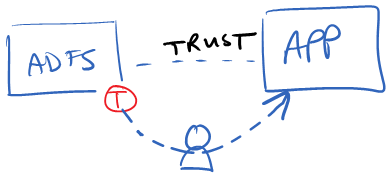
When a trust is established between AD FS and a typical (if there is such a thing) claims based application, the  application will accept the token from AD FS, verify it's signature, extract the claims, and use them.  A typical trust looks  something like this:

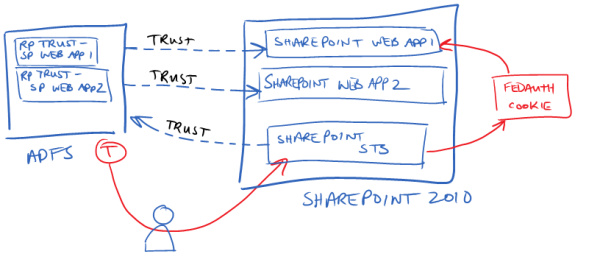
But the trust between AD FS and SharePoint, really looks something more like this:


Here, we have 2 different web apps in SharePoint, and therefore there are two different trusts from the perspective of the AD FS server. AD FS is going to create a unique token for each web app with different claims in each. However, the web apps themselves don't trust the tokens that AD FS sends to them. Instead, the SharePoint STS is what trusts the tokens that AD FS sends. Or to rephrase it another way, AD FS thinks that it is sending tokens to 2 different applications, but in reality it's not sending the tokens to either - it's sending them to the SharePoint STS.

The 3rd trust (the one that points from the SharePoint STS to the AD FS server) is the SPTrustedIdentityTokenIssuer object that you create in SharePoint. This type of design has some interesting side-effects. First, SharePoint can only have one SPTrustedIdentityTokenIssuer object for an AD FS server. Therefore, if you want different claims for each web app, you need to define the aggregate set of those claims on the SPTrustedIdentityTokenIssuer. To clarify, let's say that I want an "EmailAddress" claim in WebApp1 and an "Role" claim in WebApp2. The SPTrustedIdentityTokenIssuer object has to be configured with at least 2 claim mappings - one for "EmailAddress" and another for "Role". However, neither application is using both of them.

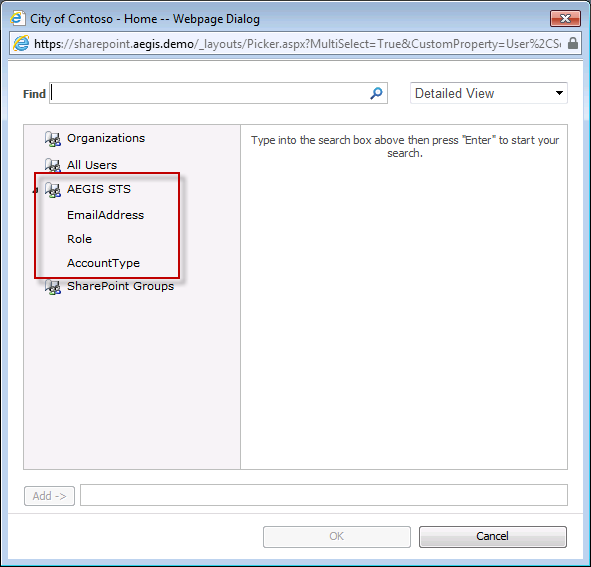
One of the interesting outcomes of this model is that from the application's viewpoint, there is a "pool of claims available" from the AD FS STS. Every application sees the same "pool of claims". However, if AD FS doesn't send that claim over for that particular web app, then the web app won't receive it even if it's expecting it. To visual this - imagine that I'm a user in WebApp1 and I'm defining a permission on a document library. As shown in the following image, I have 3 claims available. These are the same claims that every application sees, because it's "pool of claims" defined as "Claim Mappings" on the SPTrustedIdentityTokenIssuer object in SharePoint.

However, my Relying Party trusts in AD FS may not be configured to send all three claims for every application. So even though the end user may think that all of these claims are available for them to use, they may not be. This can be very confusing to the user - and is one of the reasons why you need to use a custom claims provider in almost every claims-based SharePoint 2010 deployment.
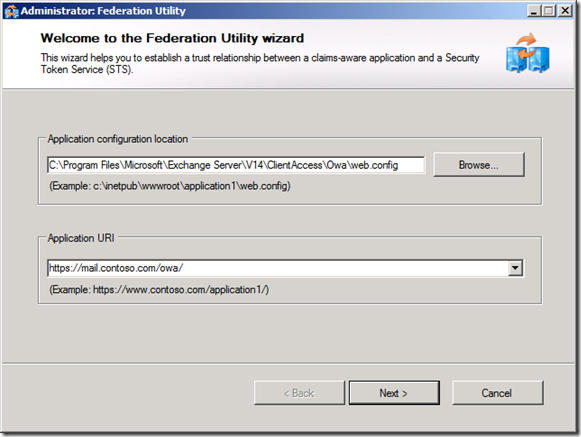
The FedAuth cookie box on the right of second diagam is another interesting quirk of how this trust works. In SharePoint, the STS does not send a SAML token to the web app. Instead, the STS creates the FedAuth cookie (a standard cookie used in WIF for the identity session state) which has an encrypted copy of the SessionSecurityToken object. This is the .NET object that is created by WIF after the SAML token is received, verified, and the claims are pulled out of it. So after the token is POSTed from AD FS back to the SharePoint STS, the SharePoint STS creates the FedAuth cookie and then issues a 302 redirect back to the user, which redirects the user to the original web app with their FedAuth cookie in hand. The SharePoint web app receives the cookie when the user request comes back to it and it uses WIF to extract the SessionSecurityToken object from the cookie and goes through the process of converting the identity into something that SharePoint can use internally.

So the relationship between AD FS and SharePoint is quite a bit different than other applications. If you can understand how this works, it will help you make better decisions about how to design your claims architecture in SharePoint.

Saturday
Nov192011

PowerShell Attribute Store for AD FS 2.0

*WARNING: Academic exercise only – I’m not sure how this would scale in production*

Download the PowerShell Attribute Store

So I was at an event last week and a buddy of mine told me that he had an intern create an attribute store for AD FS that would provision an AD account if one didn’t exist. I got to thinking about this, and I thought why stop at provisioning accounts?  Why not have an attribute store that you can use to call any PowerShell script that you want and return the results as strings that you can use in claims.

So I went back and wrote it up and decided to share it with everyone. Feel free to download the attribute store and try it out.  It’s really simple – here’s how it works:

  1. Create the PowerShell Attribute Store in AD FS
  2. Create the PowerShell script.  In the script, pass the string that you want to give back to AD FS with the Write-Output cmdlet
  3. Create a claim rule that calls the attribute stor. Pass in a query string in the following format:

FULL_PATH_OF_SCRIPT;SCRIPT_PARAMETERS

I’ll illustrate how to use the PowerShell Attribute Store with an example. In this example, I’m going to get the size of the user’s home directory as a claim.

Example: Getting the User’s Home Directory Size as a Claim

Step 1: Install the PowerShell Attribute Store DLL

Download the PowerShell Attribute Store and copy the file PshAttrStore.dll into your AD FS installation folder. For example, C:\Program Files\Active Directory Federation Services 2.0


Step 2: Create the PowerShell Attribute Store

Create the PowerShell Attribute store as a custom attribute store in AD FS.  In this example, I called it PshAttrStore.  The class name is Class1 (I know it’s lazy, but I literally just threw it together in a few minutes), so use the following string for the class name in the custom attribute store: PshAttrStore.Class1, PshAttrStore


Step 3: Set AD FS Account Permissions

Give the AD FS Service Account permissions to run the script.  I just added the AD FS Service Account to the local Administrators group on the AD FS server.  Ideally, you would want to take the time to figure out what permissions it actually needs in order to execute PowerShell scripts, but I didn’t take the time to do that.  If anyone figures it out, post it as a comment and I’ll update this post with the information.

Step 4: Create Your PowerShell Script

For this example, I’m going to use a script that takes in the name of a folder and returns the size of it as a claim.  When returning the data back to AD FS, you have to use the Write-Output command at the end of the script.  Here’s my example script:

## GetFolderSize.ps1

## -------------------

## A sample script to return the size of the folder passed into the

## script as an argument


## Get the name of the folder as the first argument in the script

$directory = $args[0];


## Get the combined size of all of the items in the folder

$size = Get-ChildItem $directory | Measure-Object -Property Length –Sum


## Calculate the size in MB and format the size to 2 decimal places

$displayedSize = "{0:N2}" -f ($size.sum / 1MB) + " MB"


## Return the size of the folder back to AD FS

Write-Output $displayedSize


Step 5: Create the Claim Rule

I’m going to use my GetFolderSize.ps1 script to get the size of the user’s home directory. To do this, I’ll need two claim rules:

  • Claim Rule 1: Get the path of the user’s home directory by querying the homeDirectory attribute in Active Directory
  • Claim Rule 2: Call the GetFolderSize.ps1 script and pass in the home directory path that I got in the first claim rule

Here is what the claim rules for this look like

Claim Rule 1: Get Home Directory Path

Claim Rule 2: Get Home Directory Size

Step 6: Testing It Out

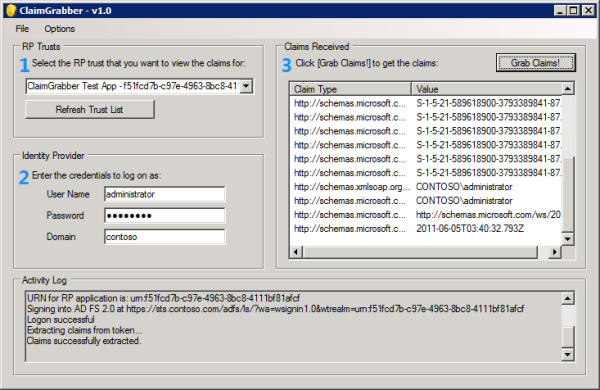
To test this, I’m going to use ClaimGrabber, which is a tool that I wrote to assist in claim rule authoring.  I’m using a beta version of ClaimGrabber in this post, which I’ll finish writing and post shortly.

You’ll notice in the ClaimGrabber output (below) that we are passing the application a claim called http://eag.demo/directorySize with a value of 14.77 MB. This claim is what we got back from the PS1 script!

Other Uses and Feedback

I thought this was an interesting idea to try out and I’m rather surprised how well it worked.  The results are pretty quick – there’s no noticeable delay when the user logs in, but I’m only running a simple script. I could see scenarios where you might want to use this to run some complex scripts. There are a ton of scenarios that you could use this for. Here are some that I could think of off the top of my head:

  • An easy way to do custom attribute stores without having to write a compiled .NET DLL
  • Auto-provision user accounts based on the claims
  • Kick off a FIM sync script for on-demand provisioning
  • Log some data about the user to an alternate audit log

I’m really interested to hear some feedback on this – in particular:

  • Would something like this be useful to deploy in production?
  • What other scenarios / scripts could you use this for?


Sunday
Jun052011

Introducing ClaimGrabber

Download ClaimGrabber Here

I’ve been working with AD FS for several years now and it’s become obvious that there are so many different scenarios and use cases for claims-based identity that it will rarely be a “point and click” deployment.  I’ve seen a need for multiple tools that can tremendously help in this space.  So, outside of my day job at Microsoft, I’ve been busy working on creating quite a few AD FS 2.0 tools. In this post, I want to introduce you to the first tool in this suite - ClaimGrabber.  Before reading on, please note that this is something that I created on my own time and is not supported nor endorsed by Microsoft.

Testing Claim Rules

Often times when deploying AD FS and configuring Relying Party trusts, you author claim rules, but don’t really have an effective way to test them. The Claims UI in AD FS will help somewhat, providing syntax checking for claim rules for instance. But how can you test the rule itself to ensure that the resultant claims are what you expect?  Sometimes, AD FS administrators will develop the claim rules in a separate lab environment and use a sample WIF application from the WIF SDK to test what claims are getting passed through. This has gotten the job done, but the process is laborious and you often don’t have access to the true source of the claim data in the lab environment.  Also, this only provides insight into the claims being passed for the sample app, not other existing apps that trust AD FS.

Claims for Existing Relying Parties

This process for existing applications is also somewhat painful. If you’re federating with SharePoint 2010, you’ll build some claims rules and then see if they work as expected by trying to browse to SharePoint and see what happens. This is an inefficient way to test claim rules because many applications will not readily tell you what claims it was given. Also, if there is a misconfiguration on the application’s side or if you are authoring claim rules for future use, you won’t have a way to test them with the application until the application is ready to receive them and use them.

The other method for testing claims passed to existing RP trusts is to use a web debugger, such as Fiddler. If your Relying Party isn’t an application, but rather another federation service, you might use Fiddler to catch the POST method while it’s being passed through your browser and then dissect the SAML token manually. If you’ve done this, you’ll know that it’s not a lot of fun weeding through a bunch of XML and trying to find a couple of claims.

How ClaimGrabber Helps

This is the reason that I created ClaimGrabber. ClaimGrabber is an application that you run directly on one of the AD FS 2.0 servers.  Basically, it impersonates both the user’s browser and application on the other end of the trust.  ClaimGrabber is really simple to use; it’s only 3 steps and there is nothing you have to install:

  1. Select the application that you want to impersonate by choosing the corresponding trust from the drop down list
  2. Enter the credentials of the user that you want to see the claims for
  3. Click the “Grab Claims!” button

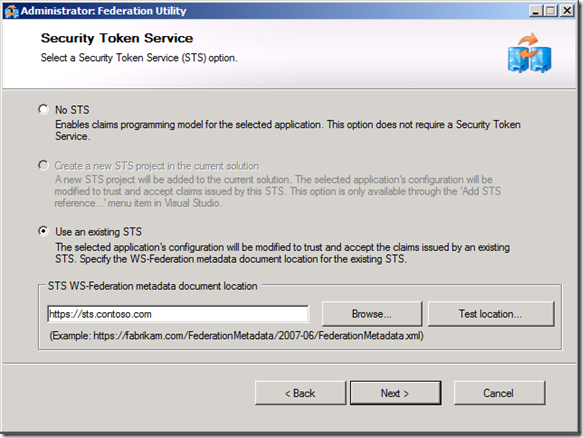
ClaimGrabber will attempt to log on by passing the application’s URN into the wtrealm query string parameter of the AD FS logon page’s URI. When AD FS responds with the web form that is used for POSTing the SAML token to the application, ClaimGrabber grabs the response stream and extracts the SAML token rather than processing the javascript auto-submit function. The claims extracted from the token are then displayed in the claim list inside the ClaimGrabber tool.  Since the tool intercepts the POST-back, it doesn’t matter whether or not the application is actually accessible or even whether it’s a real application. Therefore, ClaimGrabber can be run against your existing list of RP trusts and show you what claim data is being sent to those RPs.
Requirements

Here are the requirements for running ClaimGrabber:

  • ClaimGrabber must be run directly on one of the AD FS 2.0 servers  
  • The user account that launches ClaimGrabber must be an AD FS administrator. Please note that this is different from the account that you are using to log on to the RP with. ClaimGrabber allows you to specify the user that you log on with in the UI.

Improvements

There are a couple of things that the tool doesn’t do, but are on my list for a future update:

  • Encrypted Tokens - Currently, ClaimGrabber cannot handle encrypted SAML tokens.  In a later revision, I’ll give you the option of passing in the RP application’s encryption certificate containing the private key and have ClaimGrabber decrypt the token.
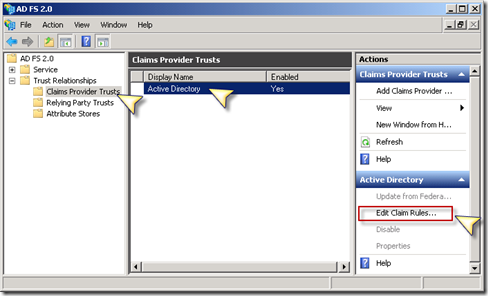
  • Non-Active Directory Identity Providers - Right now, ClaimGrabber only authenticates users against the Active Directory claims provider. I plan on adding the capability to use other claims providers, including non-ADFS providers, in a future revision of the tool.
So download it, use it, and let me know if you come across any bugs or have suggestions for improvement. Feel free to comment on this blog post with them or send me an email at ken@identityguy.com.

Download ClaimGrabber Here

Tuesday
Oct192010

Adding Claims to an Existing Token Issuer in SharePoint 2010

One of the biggest frustrations that I found when working with SharePoint and ADFS integration was that after you create the Identity Provider trust in SharePoint, you can’t add any additional claims…  or so it seems.  So after being super frustrated with this limitation, I finally just said – there’s gotta be a better way.  Turns out that there is!

Before I go through this, I want to give a shout-out to Steve Peschka’s blog post on setting up the initial trust on the SharePoint side. Steve does a great job of giving us instructions for adding the identity provider trust into SharePoint. Here’s a link to that post: http://blogs.technet.com/b/speschka/archive/2010/02/17/creating-both-an-identity-and-role-claim-for-a-sharepoint-2010-claims-auth-application.aspx.

Adding a Claim Mapping

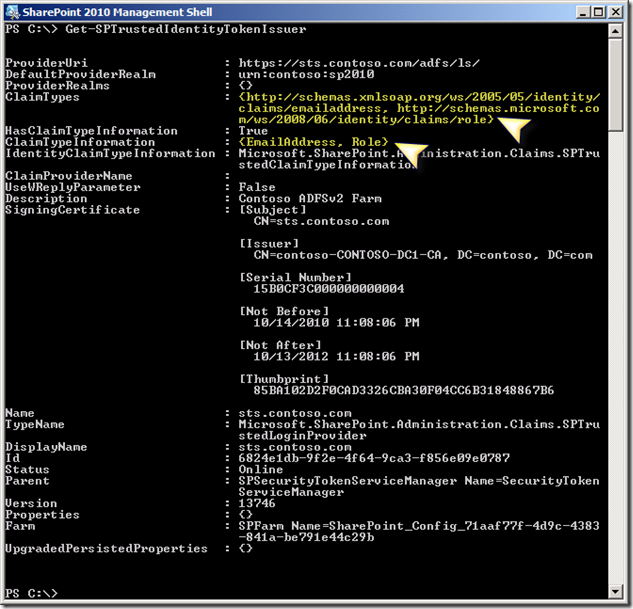
So what do you do if you’ve already created the trust and now you want to add additional claims to it? Here’s how to do it. In this example, I’m going to add the claim http://test/shoesize to identity provider trust called sts.contoso.com. Here’s the trust before the ShoeSize claim is added:

image

The first thing you need to do is stick your trust into an SPTrustedLoginProvider object:

PS C:\> $ti = Get-SPTrustedIdentityTokenIssuer sts.contoso.com

Second, you will need to add the claim type to the SPTrustedLoginProvider object and update it:

PS C:\> $ti.ClaimTypes.Add(“http://test/shoesize”)
PS C:\> $ti.Update()

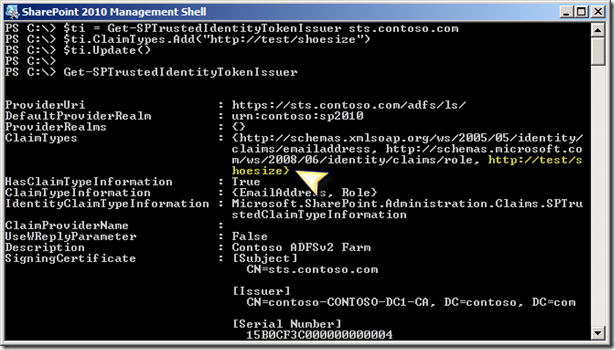
Now, if you look at the trust after you add the claim type, you will see it added to the list of ClaimTypes:

image

Next, you can create the claim mapping:

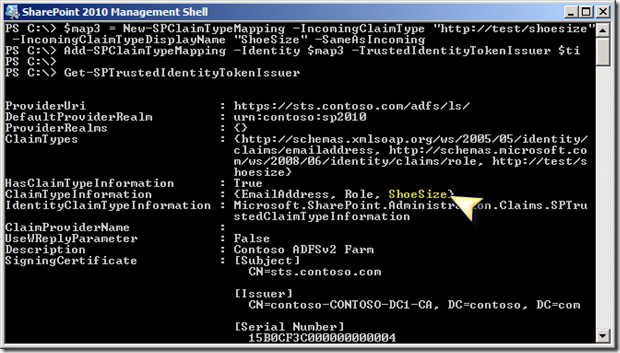
PS C:\> $map3 = New-SPClaimTypeMapping –IncomingClaimType “http://test/shoesize” –IncomingClaimTypeDisplayName “ShoeSize” –SameAsIncoming

Finally, you will need to add the claim mapping to the trust:

PS C:\> Add-SPClaimTypeMapping –Identity $map3 –TrustedIdentityTokenIssuer $ti

Now you should be able to run Get-SPTrustedIdentityTokenIssuer and see your new claim mapping.

image

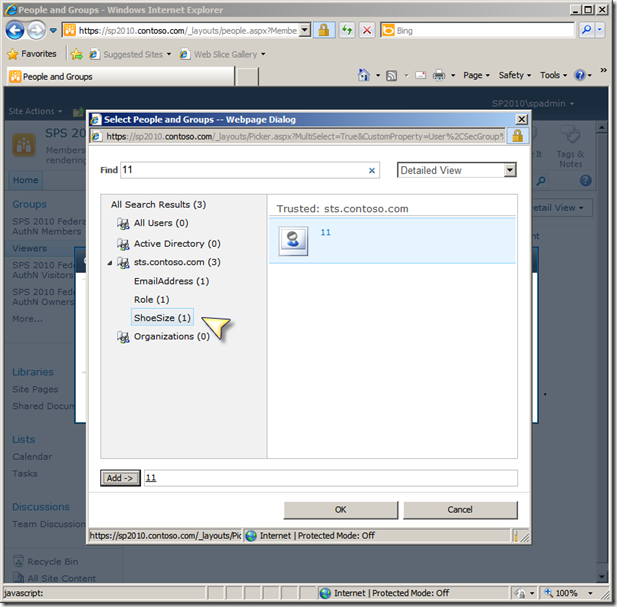
So now we can go into SharePoint and use the claim:

image

Removing the Claim Mapping

OK, so you know how to add claims, but what about removing them?  The process is actually the same in reverse.

First, you need to put the trust into an SPTrustedLoginProvider object, just like you did above:

PS C:\> $ti = Get-SPTrustedIdentityTokenIssuer sts.contoso.com

Next, you will need to put the claim mapping into an object. In this example, I’m going to use the same mapping that we just added, ShoeSize:

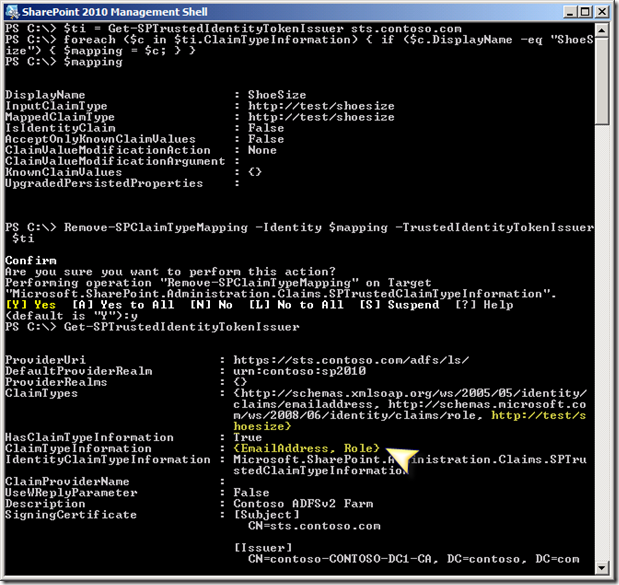
PS C:\> foreach ($c in $ti.ClaimTypeInformation) { if ($c.DisplayName –eq “ShoeSize”) { $mapping = $c; } }

What I’m doing here is enumerating through the list of claim mappings and looking for the one whose DisplayName is “ShoeSize”. When I find it, I’m putting it into a variable called $mapping.

Next, you can run the command to Remove the mapping from the trust:

PS C:\> Remove-SPClaimTypeMapping –Identity $mapping –TrustedIdentityTokenIssuer $ti

Now, your trust should have the mapping removed, however the claim type is still there:

image

So as a final step, we’ll need to remove the claim type from the list:

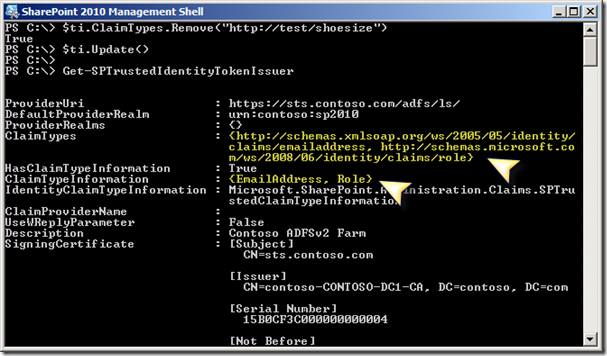
PS C:\> $ti.ClaimTypes.Remove(“http://test/shoesize”)
PS C:\> $ti.Update()

And that’s it – your claim mapping should be gone:

image